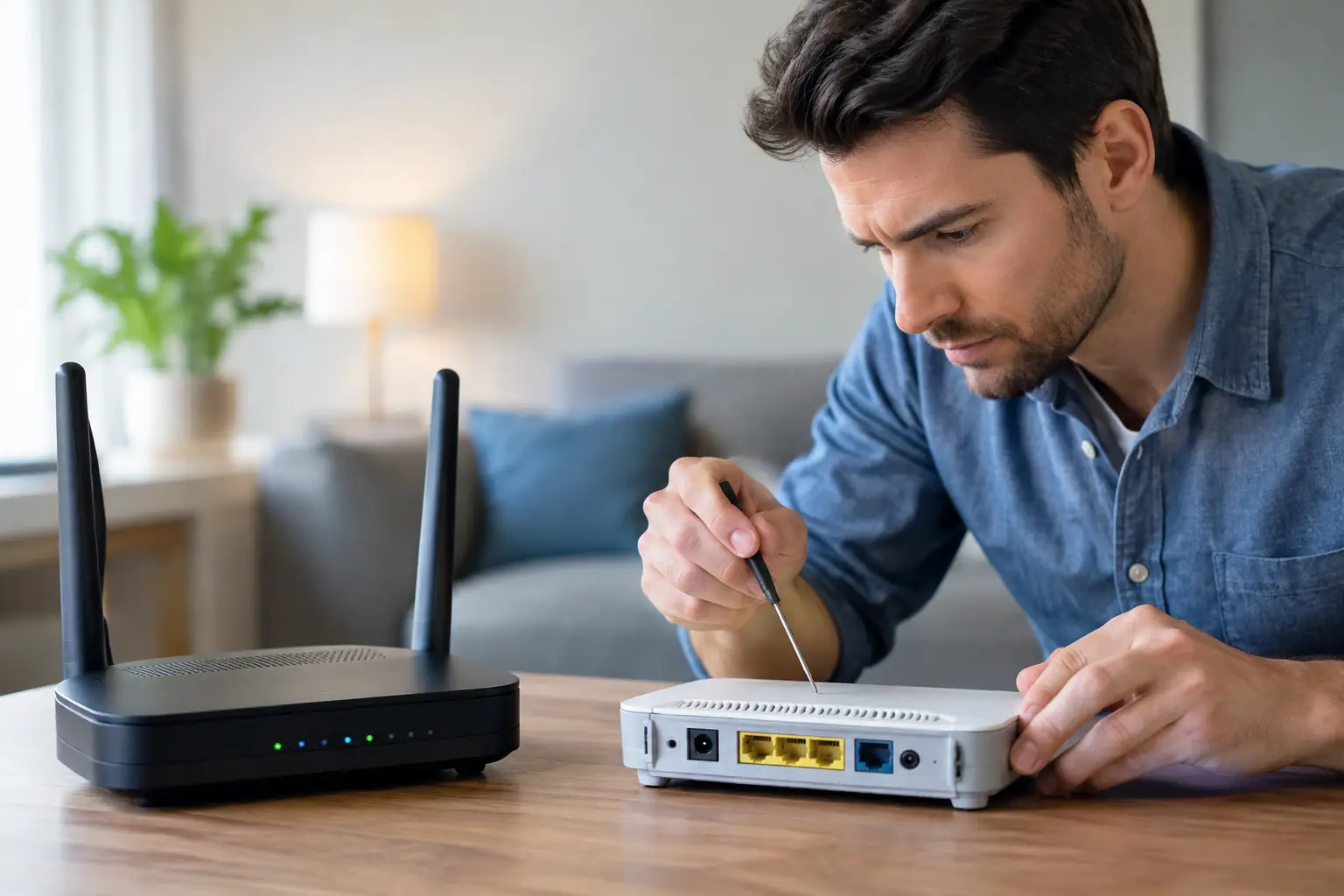
A video call freezes just as you need to speak. Your laptop shows full signal but pages will not load. The smart TV works in one room while the bedroom has no connection at all. WiFi repair starts by separating a wireless problem from an internet-service problem, then fixing the actual point of failure instead of repeatedly restarting everything.
For homes, students, remote workers, and small businesses in Calgary and Chestermere, a connection issue can stop far more than entertainment. It can interrupt work, school, point-of-sale systems, security cameras, smart locks, printers, and communication. The good news is that many problems have clear causes. The right diagnosis can save you from replacing equipment that was never broken.
WiFi Repair Starts With the Right Diagnosis
“WiFi is down” can describe several different failures. Your phone or computer may not see the network at all. It may connect to WiFi but have no internet access. The network may work close to the router but drop in other rooms. Or only one device may be affected while every other device works normally.
Those details matter. If every device has lost internet access, the issue may be with the modem, router, cabling, power, or internet provider. If the network works on a phone but not a laptop, the laptop’s network settings, drivers, software, or hardware may need attention. If connection quality changes from room to room, placement, interference, building materials, or weak network coverage is more likely.
A quick check avoids guesswork. First, see whether another device can get online through the same WiFi network. Next, check whether a device can connect with an Ethernet cable, if one is available. Finally, look at the modem and router lights. A red, flashing, or missing internet indicator can point to a provider or modem issue, while normal lights with poor room-by-room coverage usually point to the wireless setup.
Common Causes of Slow or Dropping WiFi
A router can be connected and still deliver poor performance. Wireless signals have limits, and a setup that worked well in a small apartment may struggle in a larger home, basement suite, office, or house with dense walls.
Router placement is often the first issue. A router hidden in a cabinet, placed behind a television, set on the floor, or installed at one end of a house has to push through more obstacles. Concrete, brick, metal, mirrors, appliances, plumbing, and even heated floors can reduce signal strength. Moving the router to a central, elevated, open location can make a noticeable difference without buying new equipment.
Interference is another common cause. Neighboring networks, Bluetooth devices, baby monitors, wireless cameras, microwaves, and older wireless equipment can compete for the same airspace. The 2.4 GHz band reaches farther but is usually more crowded and slower. The 5 GHz band is often faster and cleaner but has less range through walls. Newer WiFi 6 and WiFi 6E equipment can improve capacity in busy homes, but only when the router, device, and network settings support it.
Older routers can also become the bottleneck. If you have upgraded your internet plan but are still using a router from years ago, it may not handle the speed, number of connected devices, or current security standards you need. That does not automatically mean the most expensive router is the answer. The right replacement depends on the size and layout of the space, how many devices connect at once, and whether you need reliable coverage for cameras, gaming systems, or work devices.
Quick Checks You Can Do Before Booking Service
Start with the simple steps that are safe and reversible. Power-cycle the modem and router by unplugging both devices for about 60 seconds, then reconnect the modem first and allow it to fully reconnect before powering on the router. This clears many temporary connection errors.
Also check for these common issues:
- Make sure the modem and router power cables are secure and outlets are working.
- Confirm that the Ethernet cable between the modem and router is firmly connected and not visibly damaged.
- Test the network near the router, then test it in the rooms where problems occur.
- Disconnect or pause unusually heavy activity, such as large downloads, cloud backups, or multiple 4K streams.
- Restart the affected phone, tablet, computer, printer, or smart device if only that device is having trouble.
Avoid factory-resetting your router unless you know the login details and how the network was configured. A reset can erase the WiFi name, password, custom settings, mesh configuration, port forwarding, camera connections, and smart-home device access. It is useful in some cases, but it should be a controlled step, not the first response.
When the Problem Is Your Device, Not the Network
A single device that will not connect may have a saved password error, incorrect date and time, airplane mode setting, VPN conflict, outdated operating system, damaged WiFi antenna, or corrupted network configuration. Computers can also develop driver problems after an update or after installing security software.
The fastest test is to connect the affected device to another trusted WiFi network, such as a mobile hotspot. If it connects normally elsewhere, your home network settings may need adjustment. If it cannot see or join any network, the device itself may require software troubleshooting or hardware repair.
This is especially common with laptops that have been dropped, exposed to liquid, or repaired after screen or chassis damage. A loose internal antenna cable can create weak signal reception even when the router is working properly. Phones and tablets can have similar issues after impact or water damage.
Extending Coverage Without Creating New Problems
A range extender can help with a small dead zone, but it is not always the best WiFi repair solution. Traditional extenders often repeat an already weak signal, which can reduce speed and create a second network name that devices do not switch between smoothly. They work best when placed where the original WiFi signal is still strong, not inside the dead zone.
For larger homes, multi-level properties, and small offices, a mesh WiFi system may be a better fit. Mesh units work together to cover more space under one network name. Placement is still critical. Each unit needs a reliable connection to the main router or a wired backhaul connection. Adding nodes without planning their locations can produce inconsistent results rather than better coverage.
If possible, use Ethernet for stationary, high-priority devices. Desktop computers, gaming consoles, TVs, office printers, and network video recorders often benefit from a wired connection. This frees wireless capacity for phones, tablets, and mobile devices while providing more stable performance where it matters most.
WiFi Issues That Need Professional Help
Call for help when the problem keeps returning, when no device can get online after basic checks, or when you are unsure how the network was installed. A technician can test the router, modem, cables, signal quality, device settings, and room-by-room coverage before recommending a repair or replacement.
Professional support is particularly useful when your network includes security cameras, access control, smart locks, business computers, or multiple wireless access points. These systems may depend on fixed IP addresses, separate guest networks, power-over-Ethernet equipment, or router settings that should not be changed casually. A quick reset can disconnect equipment that needs careful reconfiguration.
Fonexpert can help diagnose home and small-business connectivity problems alongside computer, phone, camera, and installation needs. The practical goal is not simply to get one device online for the moment. It is to identify whether the issue is provider service, weak coverage, failing hardware, device configuration, or an installation problem, then restore a connection that remains dependable.
How to Prevent the Next WiFi Outage
Keep your router firmware updated, but schedule updates when you can tolerate a brief interruption. Use a strong, unique WiFi password and modern WPA2 or WPA3 security to prevent unauthorized devices from using your connection. If visitors regularly use your network, set up a guest network rather than sharing access to your primary devices.
It also helps to review your network after changes in your home or office. A new smart TV, game console, camera system, work laptop, or internet plan can expose limits that were not obvious before. If WiFi trouble appears only at certain hours, note the time, affected rooms, and devices. Those details make diagnosis much faster.
A reliable connection should fade into the background while you work, study, stream, and manage your home. If yours keeps demanding attention, treat it like any other repair issue: identify the cause, make the right fix, and get back to using your technology without the daily interruption.