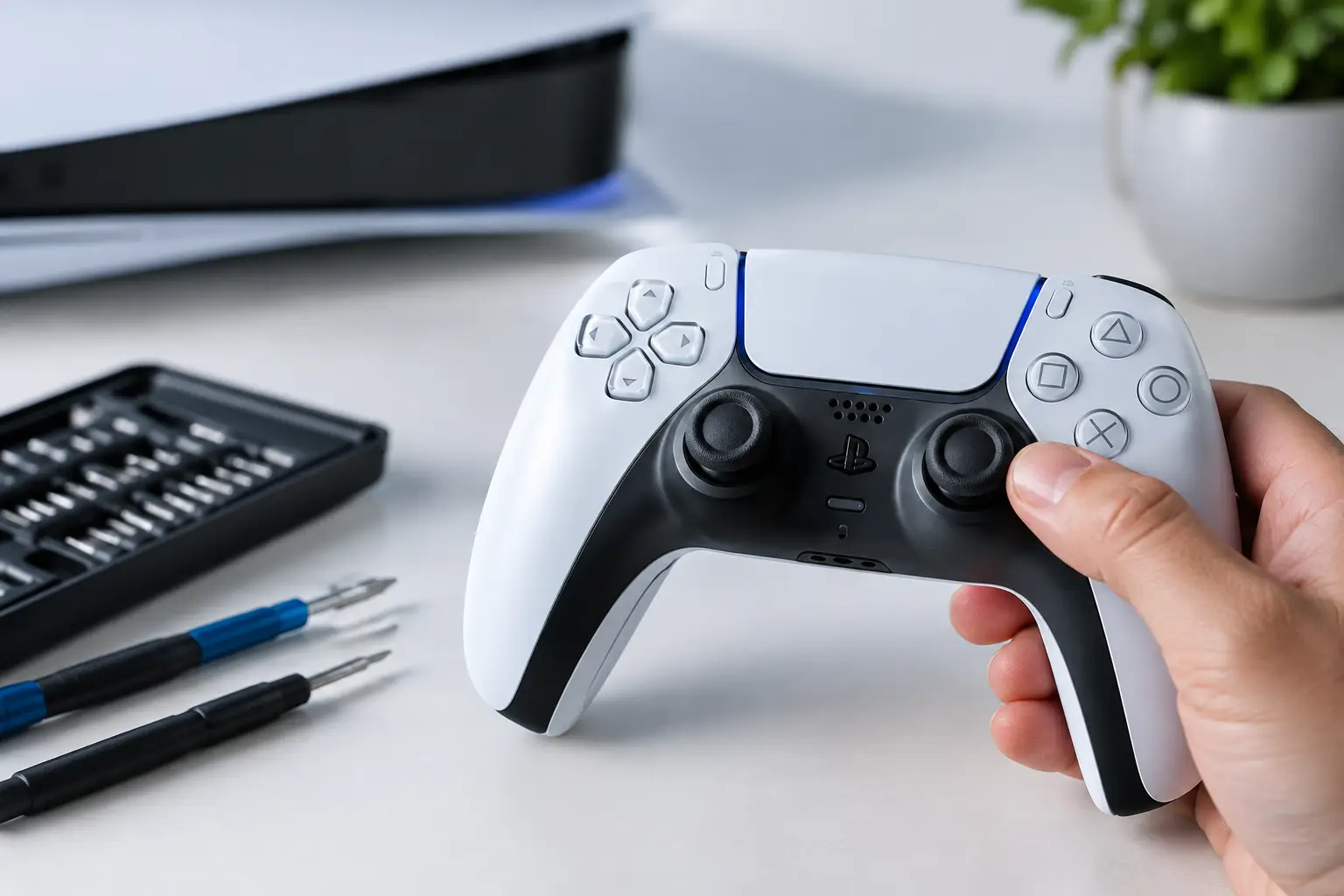
A character that walks left on its own, a menu cursor that will not stay put, or aiming that drifts off target are classic signs of PS5 controller drift. It can turn a working DualSense controller into a daily frustration, especially in games that demand precise movement. The good news is that not every drifting controller needs replacement. Some cases respond to cleaning, resetting, or settings changes. Others need a proper analog stick repair.
What PS5 Controller Drift Looks Like
Controller drift happens when the PS5 reads movement from an analog stick even though you are not touching it. It may be subtle at first. Your cursor may move through the PlayStation menu, a player may slowly run in one direction, or your camera may creep during gameplay.
Drift does not always look the same. The left stick usually affects character movement, while the right stick commonly affects camera control or aiming. It may only happen in one game, become worse after long gaming sessions, or appear on both sticks over time.
Before assuming the controller has failed, test it in the PS5 home screen and in more than one game. If the issue only occurs in one title, check that game’s controller settings first. A large dead zone setting can hide a minor problem, but it can also make controls feel less responsive. If drift appears in menus and across several games, the controller itself is the likely cause.
Why PS5 Controller Drift Happens
The DualSense analog stick uses a compact mechanism that measures stick position as you move it. With regular use, the internal parts can wear down. Dust, skin oils, food particles, and residue can also work their way around the stick assembly and interfere with accurate input.
Wear is the most common reason for persistent drift. Competitive games, long sessions, and repeated pressure on the sticks can shorten the life of the internal sensors. This is not always caused by misuse. Analog sticks are moving components, so they naturally experience friction over time.
Other possible causes include:
- Dirt or debris under the stick cap or inside the analog assembly
- A controller firmware issue or temporary pairing problem
- Moisture exposure, including a drink spill or humid storage
- A hard drop that damages or shifts an internal component
- A worn sensor module that can no longer return to a stable neutral position
A software update can occasionally improve strange controller behavior, but it cannot restore a worn sensor. That distinction matters. Repeated resets and updates are worth trying once, but they will not solve a mechanical problem.
Try These Safe Fixes Before Booking a Repair
Start with the least invasive checks. Turn off your PS5, then connect the DualSense controller using a reliable USB-C cable. Check for a controller software update through the PS5 accessories settings. Updating the console is also worthwhile if it is behind on system software.
Next, restart the controller. On the back of the DualSense is a small reset button near the Sony logo. Use a paperclip or SIM tool to press and hold it for about five seconds. Reconnect the controller to the PS5 with a cable, then test both sticks in the home screen.
If drift remains, clean around the affected analog stick carefully. Power the controller off first. Move the stick gently in a full circle while using short bursts of compressed air around the base. A small amount of high-percentage isopropyl alcohol on a cotton swab can help remove surface grime, but do not soak the controller or spray liquid directly into it. Let it dry completely before powering it back on.
This can help when debris is the issue. It is less likely to help if the drift has been getting steadily worse for weeks or months. Avoid forcing the stick, pouring cleaner into the controller, or repeatedly using lubricants not intended for electronics. Those shortcuts can create a larger repair problem.
Check Dead Zone Settings Carefully
Many games include a dead zone setting. The dead zone is the small area around the stick’s center position where the game ignores input. Increasing it can stop minor drift from affecting gameplay.
This is a practical short-term option if the drift is very slight, particularly in a game with flexible control settings. The trade-off is reduced precision. Your character or camera may need more stick movement before it responds, which can be noticeable in racing, shooters, sports, and competitive games.
Dead zone adjustments are not a controller repair. If you have to keep raising the dead zone, the underlying issue is likely progressing.
When Cleaning and Resetting Are Not Enough
A controller that continues moving on its own after cleaning, resetting, updating, and testing in multiple games usually needs internal diagnosis. The analog stick assembly may be worn, contaminated internally, or damaged from impact or moisture.
Opening a DualSense controller is more involved than it looks. The shell uses clips and screws, and the internal battery, trigger components, ribbon cables, and stick modules are all easy to damage without the right tools and experience. Replacing an analog component also requires accurate soldering. A loose connection or overheated board can turn a stick repair into a full controller replacement.
Professional repair is often the sensible choice when the rest of the controller is in good shape. A technician can inspect the stick mechanism, identify whether the issue is contamination or component wear, and determine whether repair is cost-effective. If there is liquid damage or multiple faults, replacement may make more sense than putting money into an unreliable controller.
For Calgary and Chestermere gamers, Fonexpert can assess DualSense controller issues and provide a straightforward repair option when at-home troubleshooting has not solved the problem. Getting a diagnosis first helps you avoid replacing a controller when a targeted repair may be enough.
How to Reduce Future Controller Drift
No analog stick lasts forever, but a few habits can reduce unnecessary wear. Keep food and drinks away from your gaming area, store the controller in a clean, dry place, and avoid leaving it where it can be stepped on or dropped. Wipe the controller down regularly with a soft cloth to keep oils and grime from building up around the sticks.
Try not to press the analog sticks harder than the game requires. Clicking L3 or R3 is part of normal use, but repeated forceful clicking adds stress to the stick assembly. If a game lets you remap sprint or other frequent stick-click actions, changing the control layout may be more comfortable and may reduce wear over time.
A protective case is useful for travel, but it will not prevent sensor wear from regular gameplay. It is best viewed as protection against impact, dirt, and accidental spills rather than a permanent answer to drift.
Repair or Replace: Which Makes More Sense?
The right choice depends on the controller’s age, condition, and the symptoms you are seeing. Repair is generally worth considering when drift is the only issue, the buttons and triggers work properly, and there is no major physical or liquid damage. It can be especially practical if you prefer the feel of your current controller or need it back quickly.
Replacement may be the better route if the controller has severe water damage, cracked housing, charging failure, trigger problems, battery issues, and drift at the same time. In that situation, repairing one component may not solve every reliability concern.
Do not let a small amount of drift become the reason gaming feels like work. Start with a reset, update, and careful cleaning. If the input still will not hold steady, a proper diagnosis can give you a clear answer and get you back to playing without fighting the controller.