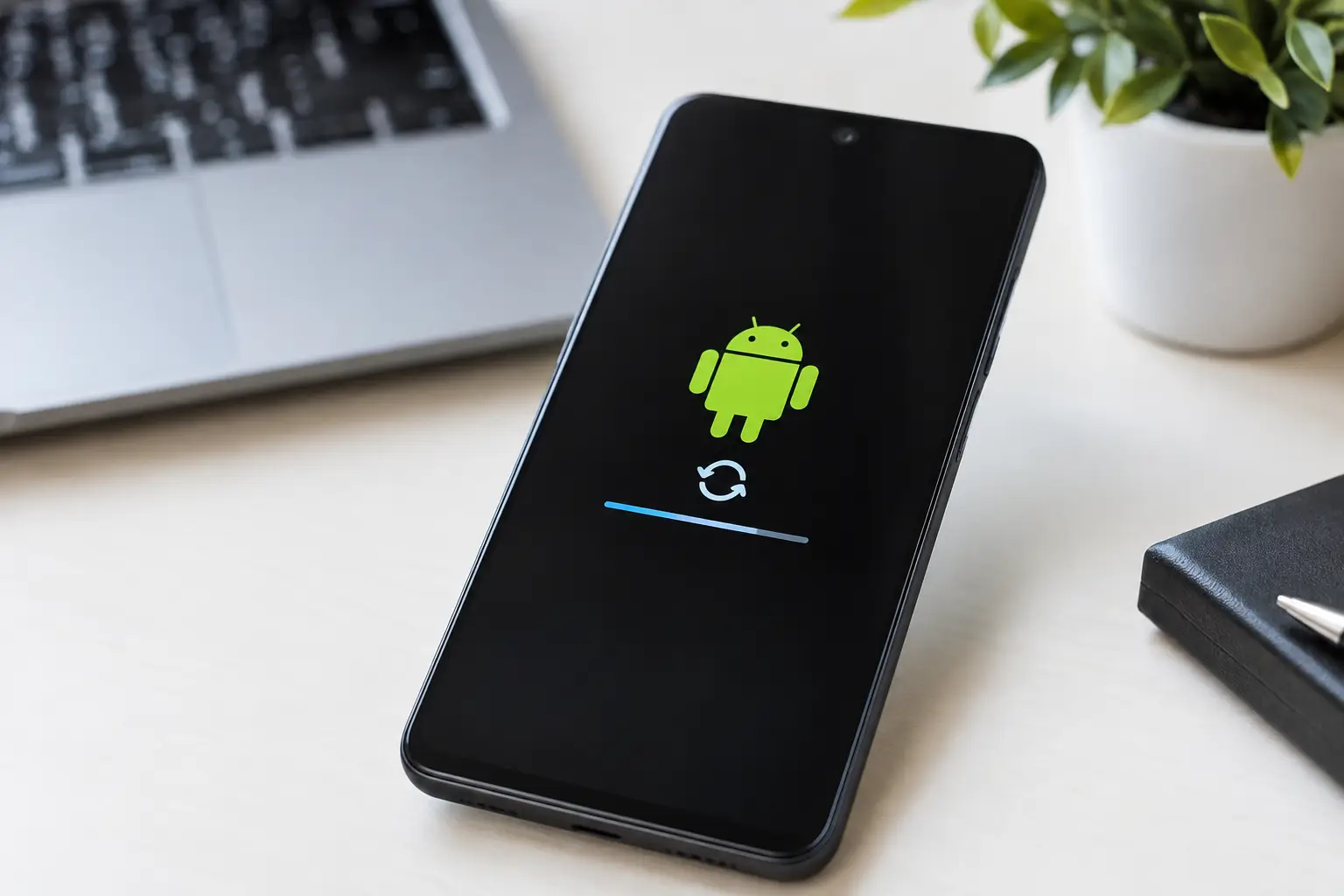
A phone that reaches the logo, shuts off, and starts again can turn a normal morning into a missed-work, missed-school, or no-contact problem. This Android boot loop recovery guide starts with the safest checks first, because the wrong reset can erase data without fixing the underlying fault.
A boot loop means your Android device cannot finish starting up. It may restart at the Samsung, Google, Motorola, or carrier logo, freeze on an animation, or repeatedly cycle between a black screen and the startup screen. The cause can be software, a weak battery, a damaged charging port, a failed update, water exposure, or an internal component issue. What you see during the restart cycle helps narrow it down.
Start With the Low-Risk Checks
Before entering recovery menus or considering a factory reset, give the phone a stable power source. Use a known-good wall charger, cable, and outlet, then leave the phone connected for at least 30 minutes. A battery that has dropped very low or is no longer holding voltage can make the device restart before Android has enough power to load.
Do not rely on a laptop USB port for this test. It may provide too little power, especially if the battery is failing. If the phone gets unusually hot, smells burnt, shows swelling, or was recently exposed to liquid, unplug it and stop charging. Continuing to power a damaged device can make the issue worse.
Next, perform a forced restart. On many Android phones, hold the Power button and Volume Down button together for 10 to 20 seconds. Some models use Power and Volume Up instead. Keep holding until the screen goes black and the device attempts to restart.
A forced restart does not erase your data. It simply clears a stalled startup process. If the phone boots normally afterward, install pending system updates, remove any recently installed apps that may be causing trouble, and make a backup right away.
Remove External Accessories
Disconnect chargers, USB adapters, headphones, cases with battery packs, and any other accessories. If your phone has a removable microSD card, turn it off if possible and remove the card before trying to start it again. A failing or corrupted card can occasionally interfere with startup.
For phones with a physical SIM tray, removing the SIM is optional but can be a useful test if the rebooting began after travel, a carrier change, or visible tray damage. The phone should still boot without a SIM card. Do not force the tray if it is bent or stuck.
Identify What Triggered the Android Boot Loop
The timing of the problem matters. A loop that begins immediately after a system update often points to corrupted software, an interrupted update, or a storage issue. A loop that appears after a drop, liquid exposure, battery replacement, or charging problem is more likely to involve hardware.
Common boot-loop triggers include:
- An interrupted Android or security update
- A problematic app, launcher, or system modification
- Full or failing internal storage
- Battery deterioration or unstable charging power
- Water damage, impact damage, or a loose internal connection
- Failed charging, power-management, or motherboard components
If the phone restarts only when unplugged, the battery is a strong suspect. If it restarts when the charging cable moves, inspect the port and cable. If it loops after getting wet, do not keep testing it over and over. Corrosion can spread after liquid exposure, even if the phone initially appears to work.
Try Safe Mode If the Phone Reaches the Lock Screen
Safe Mode starts Android with essential system apps only. It is useful when the device can reach the lock screen or home screen briefly before restarting. If the phone works normally in Safe Mode, a downloaded app is likely causing the loop.
The method differs by manufacturer, but on many devices you hold the Power button, then press and hold the on-screen Power Off option until the Safe Mode prompt appears. On some models, you hold Volume Down while the device is starting. Check the instructions for your specific model if one method does not work.
Once in Safe Mode, back up photos, contacts, documents, and authentication information first. Then remove recently installed apps, especially battery tools, launchers, antivirus apps, VPNs, cleaners, themes, or apps installed outside the Play Store. Restart normally after removing one or two likely causes. Avoid deleting many apps at random, since that makes the original problem harder to identify.
Use Recovery Mode Carefully
When Android cannot load at all, Recovery Mode may provide limited repair options. The button combination varies by model, but commonly involves holding a volume button and the Power button while the phone is off or connected to a computer by USB.
Recovery Mode is not identical across brands. Some phones offer a cache-clearing option, while many newer Android versions do not. If you see an option to clear the cache partition, it generally does not erase personal files and may help after a failed update. Read every screen carefully before confirming an action.
Do not select “wipe data/factory reset” unless you understand the trade-off. A factory reset removes locally stored photos, messages, apps, downloads, and account settings. It can solve a software boot loop, but it cannot repair a bad battery, damaged power circuit, or liquid-damaged board.
If you have important data and no current backup, pause before resetting. Modern Android devices encrypt data, which means recovering files after a reset is usually not possible. A repair technician may be able to stabilize the phone long enough to retrieve data in some cases, but there is no guarantee.
When a Factory Reset Makes Sense
A factory reset is most reasonable when the boot loop began after a software issue, the phone has no signs of physical or liquid damage, and your data is already backed up or no longer needed. It is also an option if Safe Mode and recovery cache options have not worked.
After the reset, the phone will require the Google account previously used on the device. This Factory Reset Protection step is designed to protect stolen phones. Make sure you know the account email and password before proceeding. If you recently changed the Google password, Android may require a waiting period before it accepts the new credentials.
If the phone enters the same loop immediately after a clean reset, stop repeating resets. That pattern usually points away from a simple app conflict and toward hardware, storage failure, or deeper firmware damage.
Signs You Need Professional Boot Loop Repair
A repair assessment is the practical next step when your phone loops after a drop or water exposure, becomes hot during startup, will only run on the charger, cannot enter Recovery Mode, or continues rebooting after a reset. These symptoms can involve the battery, charging port, power-management circuit, display connection, internal storage, or motherboard.
Be cautious with online firmware flashing instructions. Installing the wrong file, using an unreliable tool, or interrupting the process can create a more serious failure. Flashing may be appropriate for certain supported models, but it should match the exact phone model, region, and firmware version. It is not the first move for a phone with possible physical damage.
For Calgary and Chestermere customers, Fonexpert can assess whether the boot loop is software-related or caused by a component failure, then provide a clear repair path and price estimate. Bring the phone, its charger if charging is part of the issue, and the details of what happened just before the restart cycle began.
A boot loop is frustrating, but it is not automatically a lost phone. Start with stable charging and a forced restart, protect your data before choosing destructive options, and stop experimenting when heat, liquid, or impact damage is involved.